School & Tuition Centre Management Software Singapore | AOne

 SINGAPORE
 MALAYSIA
 INDONESIA
 THAILAND
 PHILIPPINES

Product Overview

Billing

Student Management

Teacher Management

Lesson Management

Schedule & Timetable

Finance Management

Replacement

Student Registration

Student Attendance
Not sure whether AOne suits you?
Consult your needs with us and let’s discuss how we can help you
Schedule & Timetable
Keep schedules organized, accessible, and personalized for everyone.
Reduce scheduling conflicts, so everyday runs smoothly.
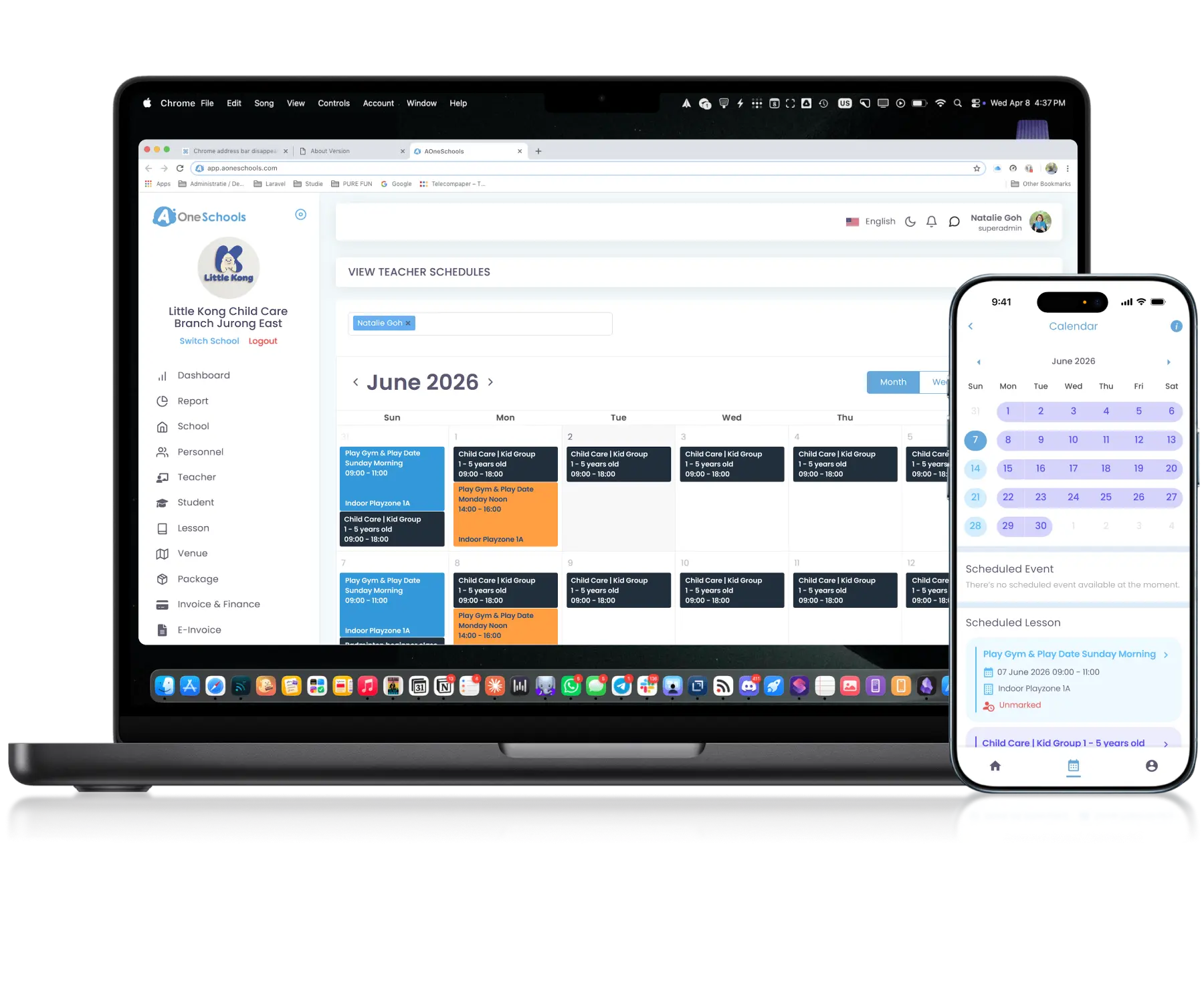
Clear • Organized • Personalized
Plan every day the smarter way
Calendar View
View Schedules Through Calendar Format
Schedules displayed in a calendar-based interface for easier navigation and operational visibility across lessons and activities. Visibility is Role-Based, allowing Superadmins and Admins to view all schedules while teachers and parents only see relevant ones.
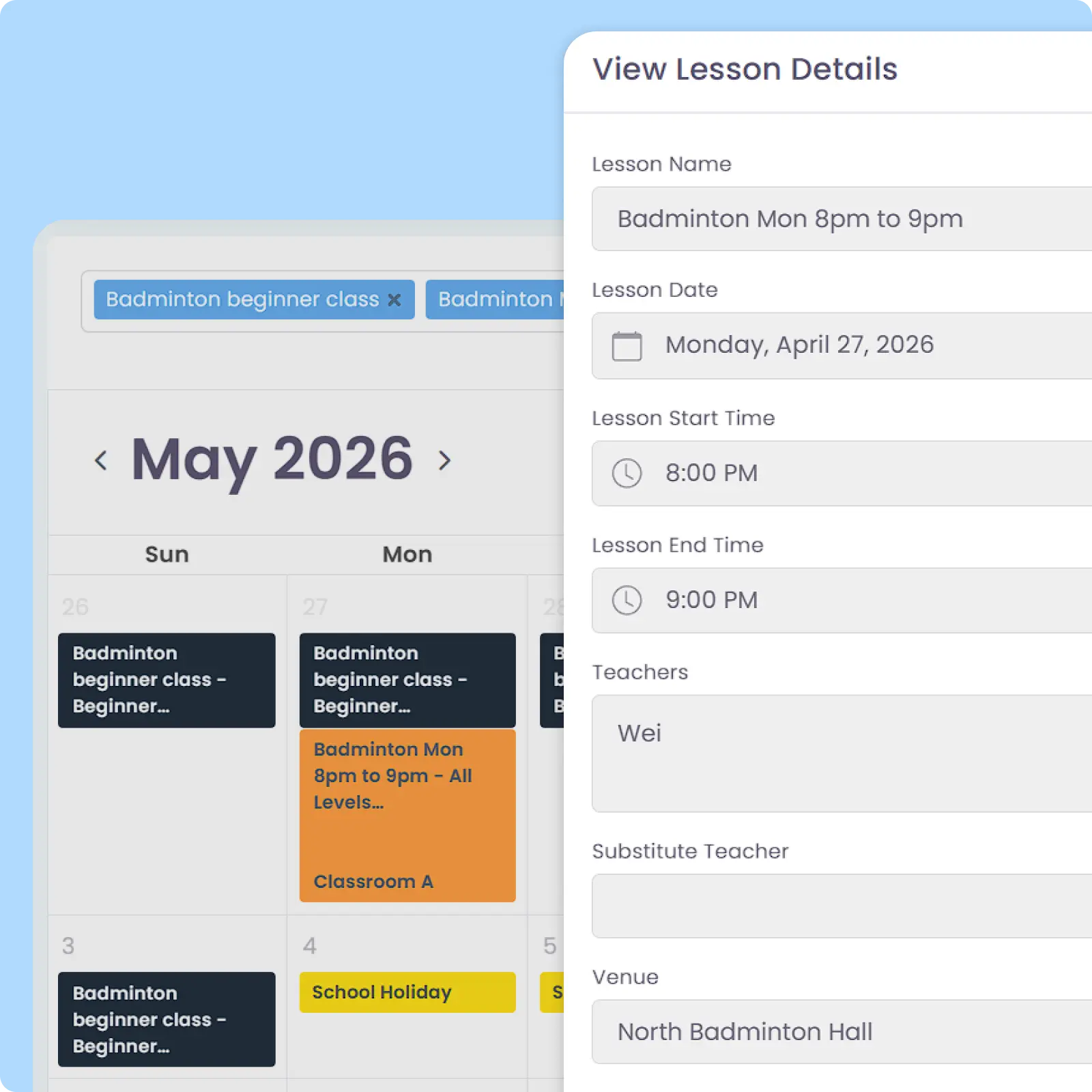
Personalized Calendar
Keep Calendars Role-Based and Focused
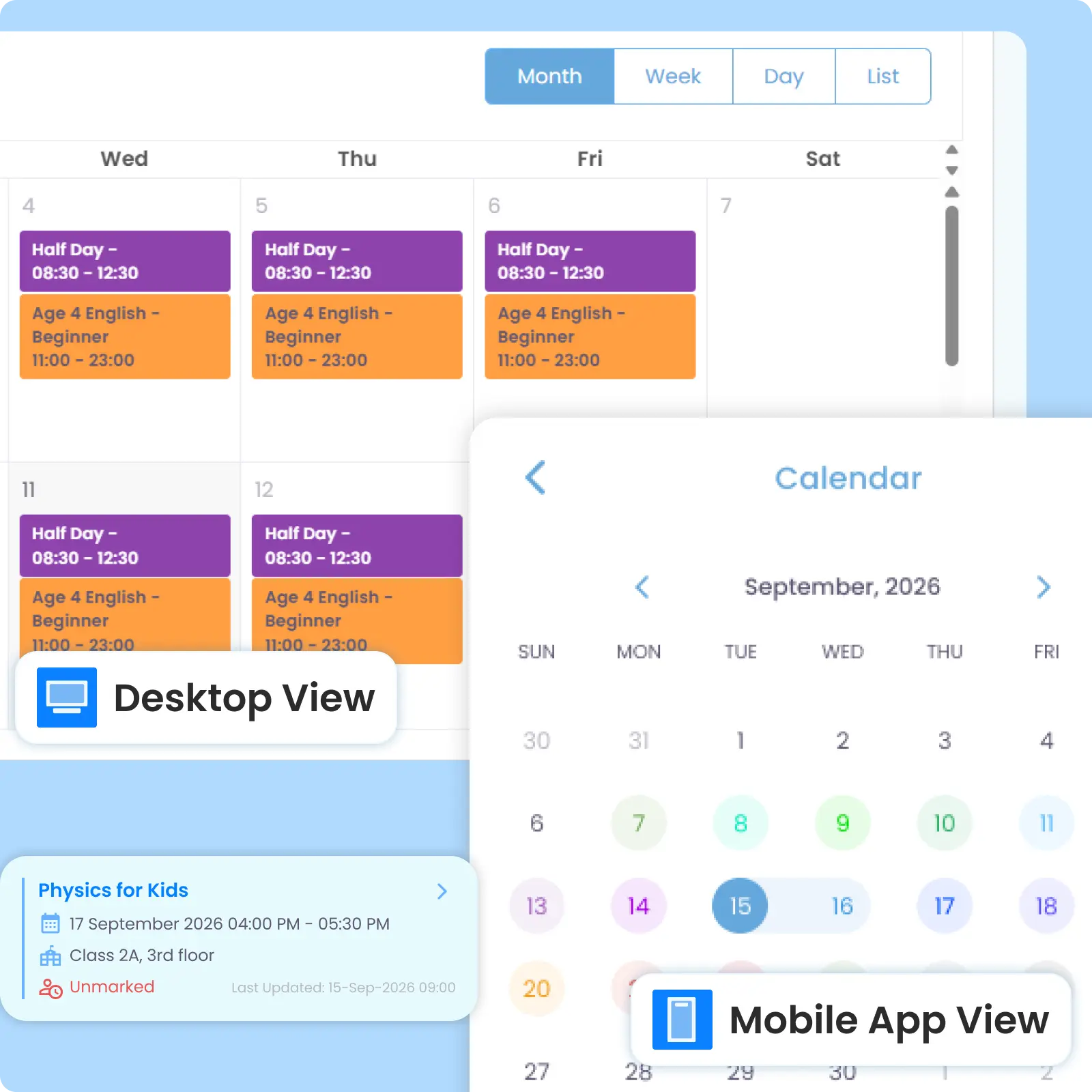
Auto-Reminder
Automate Lesson Reminder Workflows
Automatically send a system-generated reminder for upcoming Lessons to teachers and parents based on lessons scheduled. Timing can be customized every certain days before the day there is a lesson at a predefined, same hour.
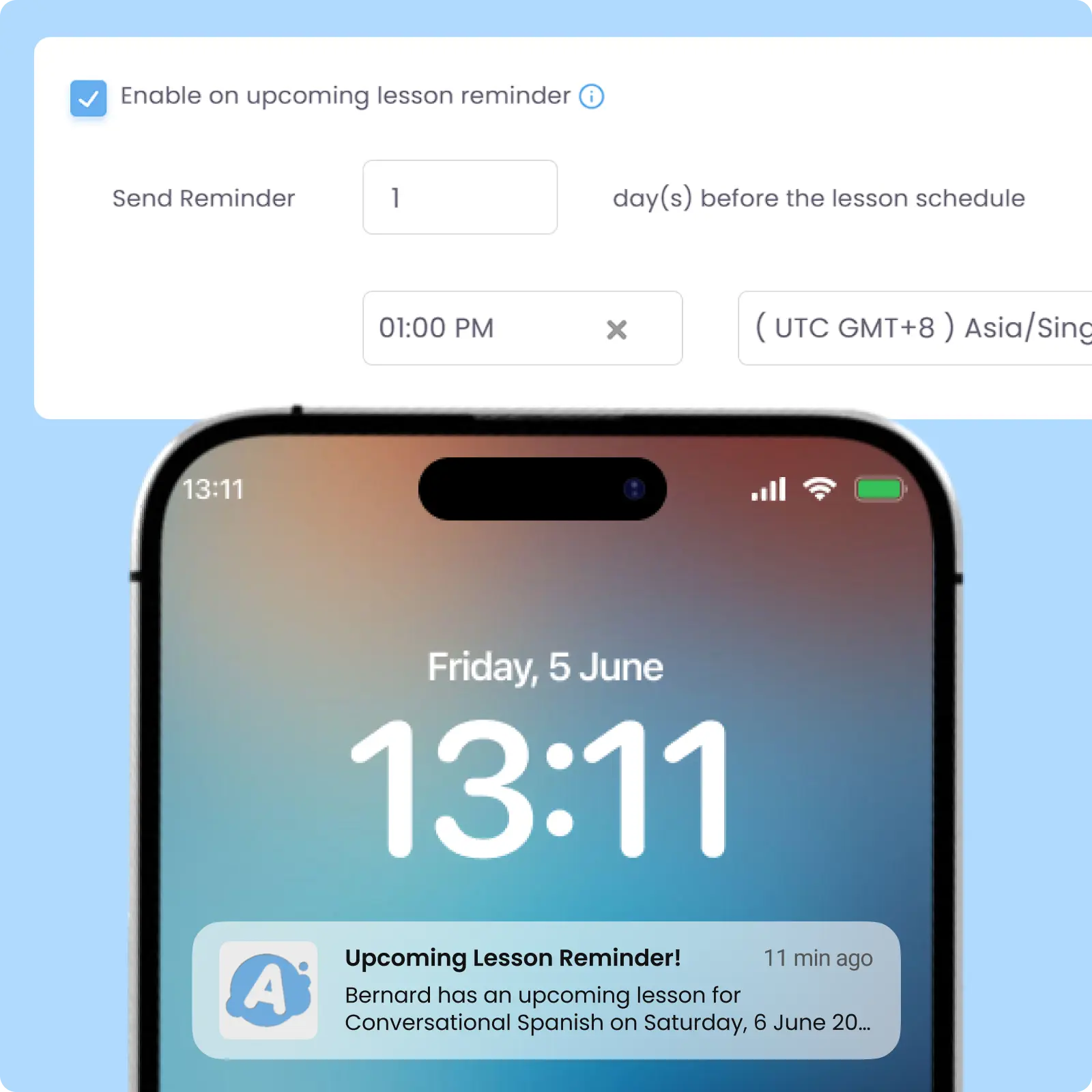
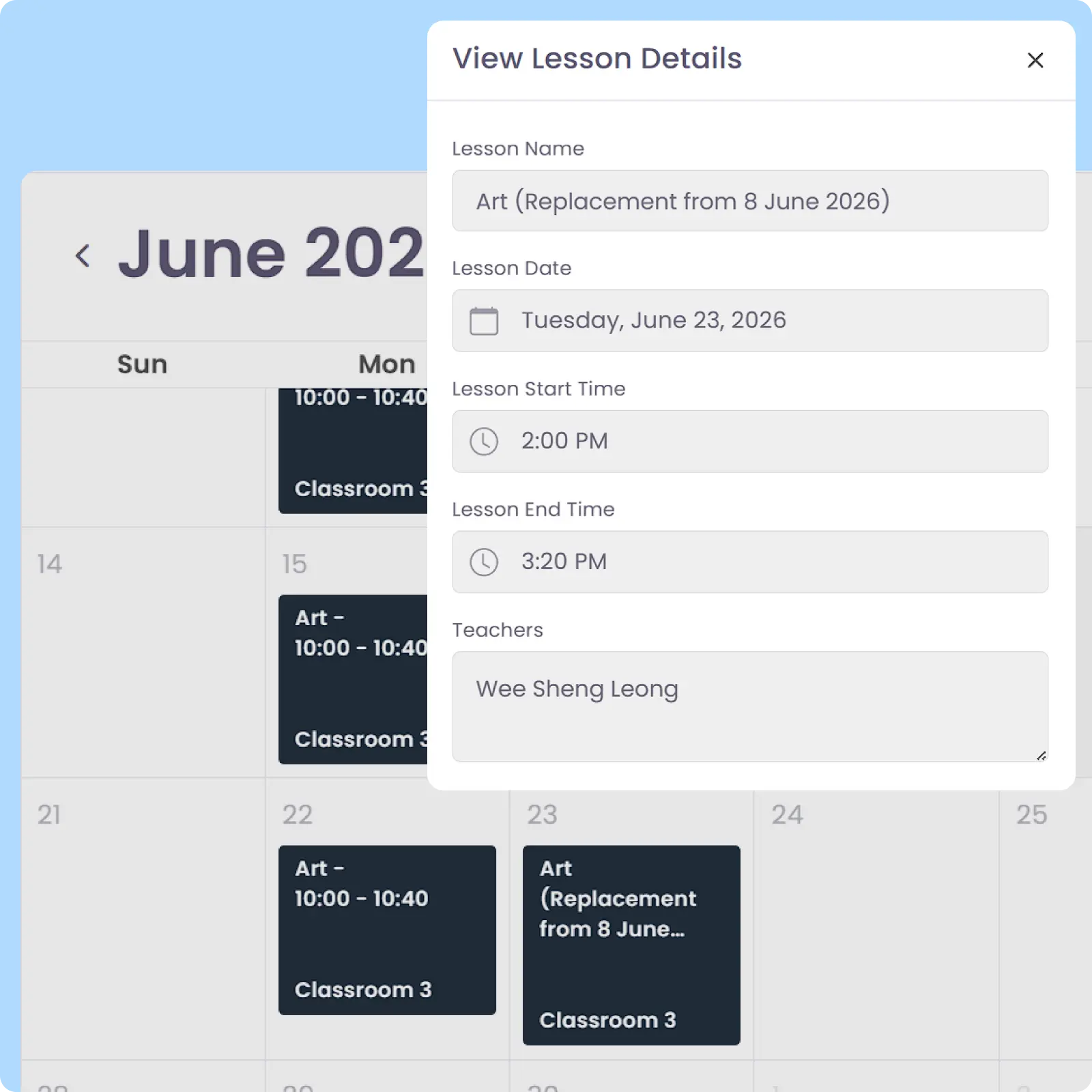
Class Replacement
Auto-sync Replacement Classes to Affected Calendars
Schedule changes caused by replacement classes are synchronized automatically within operational calendars. All affected users get calendar updates once replacements are scheduled. They will also receive a replacement class Reminder at a predefined reminder timing.
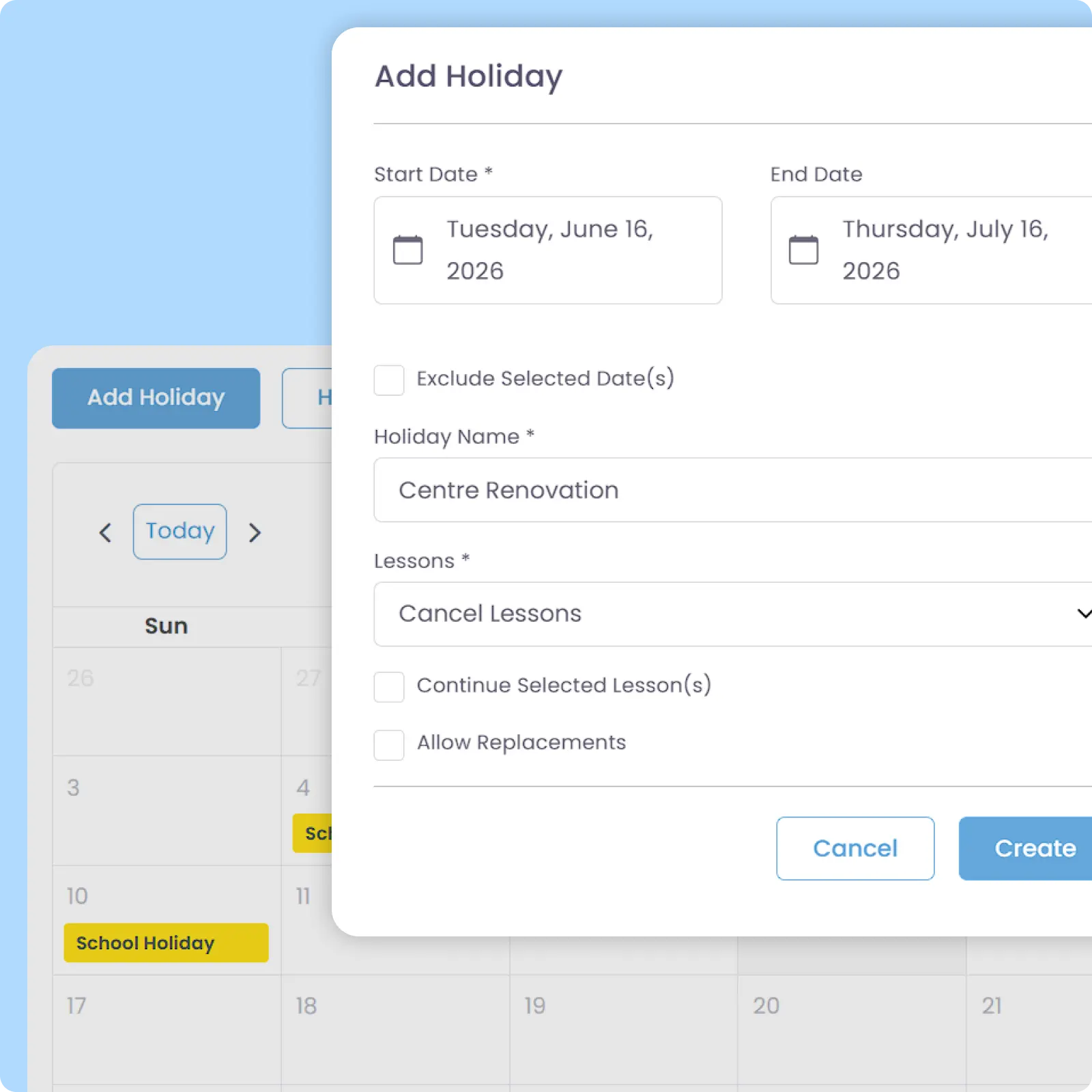
Holiday Management
Connect Holidays with Scheduling Workflows
Create and manage public or centre-specific holiday periods in advance while arranging any necessary Replacement Classes within the same workflow. Calendars update automatically for all affected teachers, parents, and students.
Why Everyone loves
AOne Learning Centre Scheduling System
Up to 2x increase in attendance rates
Up to 2 hours admin time saved daily
Up to 95% less schedule-related confusion

Back then, we needed to order receipt books and there was a lot of paperwork daily, taking up a lot of our time.
After using AOne, it reduced our workload and is also environmental friendly because we no longer need to purchase a receipt book. We can issue receipts, and guardian students can check their invoices and receipts through the app.

Scheduling doesn’t have to be confusing
When schedules scale, even small changes become a big headache. See how AOne can keep teachers, students, and classes running in sync.

Frequently Asked Questions
Can I see a visual overview of all classes scheduled at once?
Yes, technically you can see all classes scheduled at once. However, for bigger centres, dumping all classes in a singular view makes it hard to see the details of everything. Hence, there are several ways you can see on-going or upcoming classes.
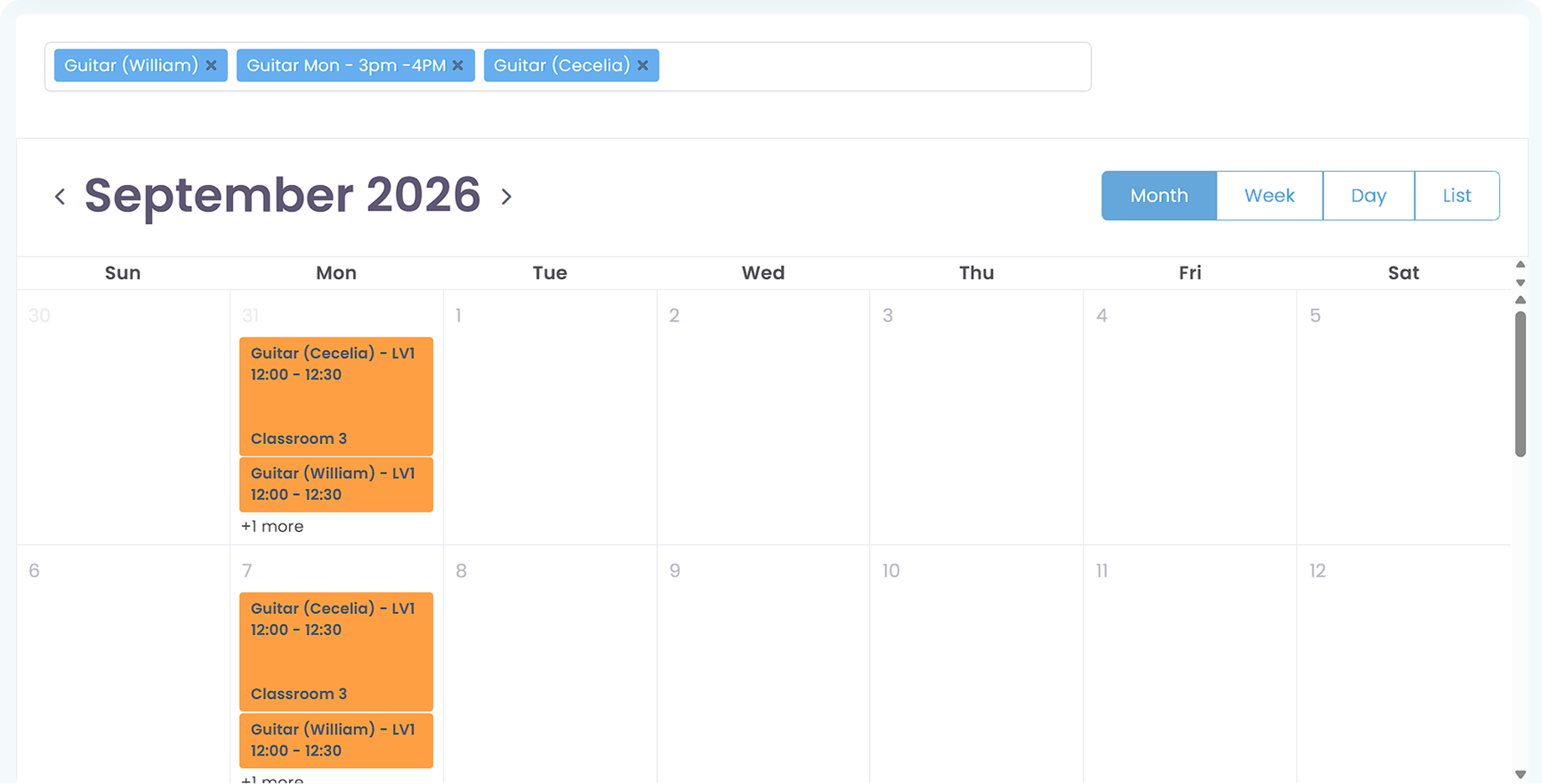
First option, you can navigate to either Teacher or Lesson modules, depending on whether you want to see timetable by teacher or lesson schedules. From either module, you can navigate to Options, then choose Calendar View. You can directly see the schedule or filter by which Lesson or Teacher, and set the display view to Month, Week, Day, or List.
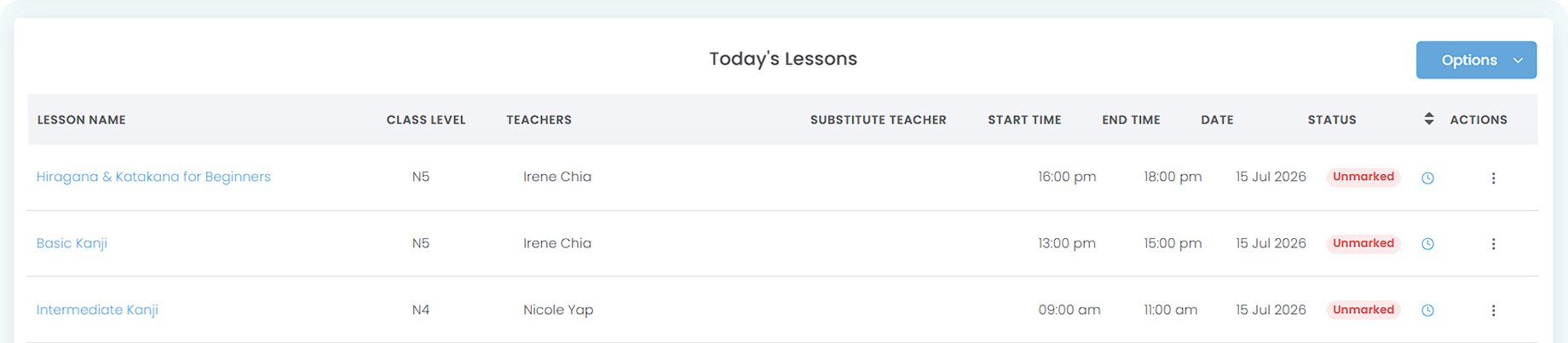
The second way to see ongoing classes is by using the Attendance module. In this module, you can see the list of today’s lessons alongside their time and attendance-taking status.
How do I manage public holidays in the timetable?
You can set a holiday period via Holiday module. Upon creating a holiday, you can choose to skip, continue, or reschedule all or selected classes falling on those dates. By allowing Class Replacement, you can arrange the replacement by yourself or let teachers or parents propose.
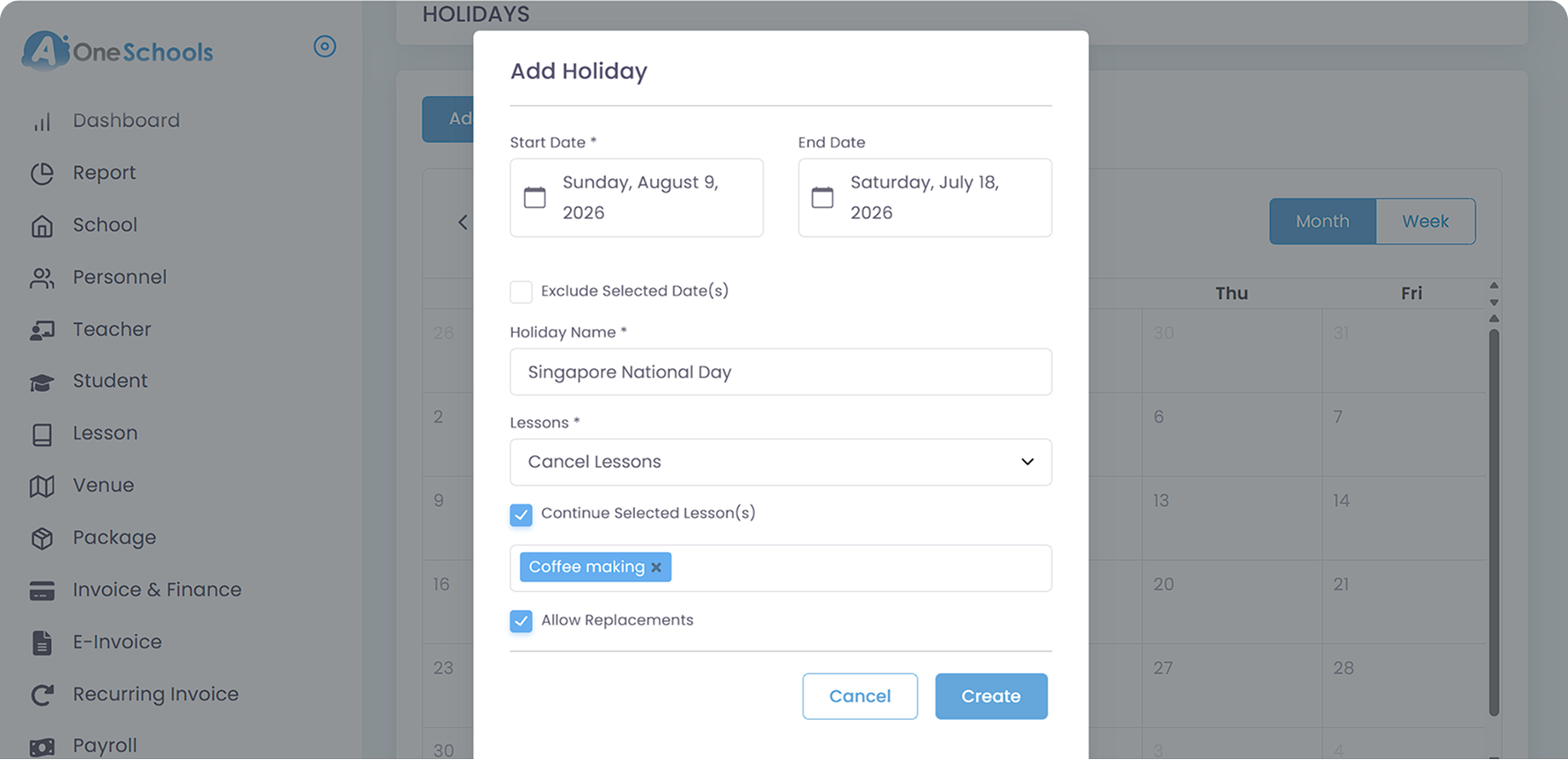
Marking a holiday and canceling lessons in the affected dates automatically clear the timetable for that day across the parent and teacher apps. For Attendance-based fees, the system will Auto-Calculate the final billed amount based on the number of holiday-affected sessions.
Additionally, Class Reminders will auto-adjust based on your holiday configuration. For each case of holiday configurations:
- Continue Lessons: The system will send reminders as usual.
- Continue Lessons but Cancel Selected Lessons: The system will send reminders for all lessons except the canceled ones.
- Cancel Lessons: The system will not send any reminders.
- Cancel Lessons but Continue Selected Lessons: The system will only send reminders for the lessons that are continuing and not for canceled ones.
How do I handle last-minute schedule changes or cancellations?
It depends on what kind of last-minute changes or cancellations that you want to configure:
- If the schedule changes happen to one or some lessons within a day and affect all students, you can arrange a Replacement to any existing classes or a custom date.
- If the schedule changes happen to one or several students, you can arrange a replacement for just the affected students or let their parents propose a replacement.
- If the schedule changes are supposed to happen due to the teacher(s) being unable to attend but you still have time to assign a substitute teacher instead of changing the schedule, you can manage the substitution via the Teacher module.
- If the schedule changes happen due to an unexpected, temporary centre closure, you can mark that day in the Holiday module and choose to cancel all or selected lessons within the affected time and date.
Regardless of the causes, if the changes are very last-minute, it is also highly advised to send an Announcement to the affected users, Pin the announcement, and opt-in email announcement as well to give high-level clarity to everyone. Optionally, you can also Broadcast the news using In-App Messaging feature, targetting affected parties.
Does AOne send reminders for upcoming classes? If so, can I customize the content and the number of reminders sent to parents?
Yes, the system sends automated Push Notifications to parents and students before their class starts. You can customize when to send the reminder to ensure parents receive alerts at the most helpful times.
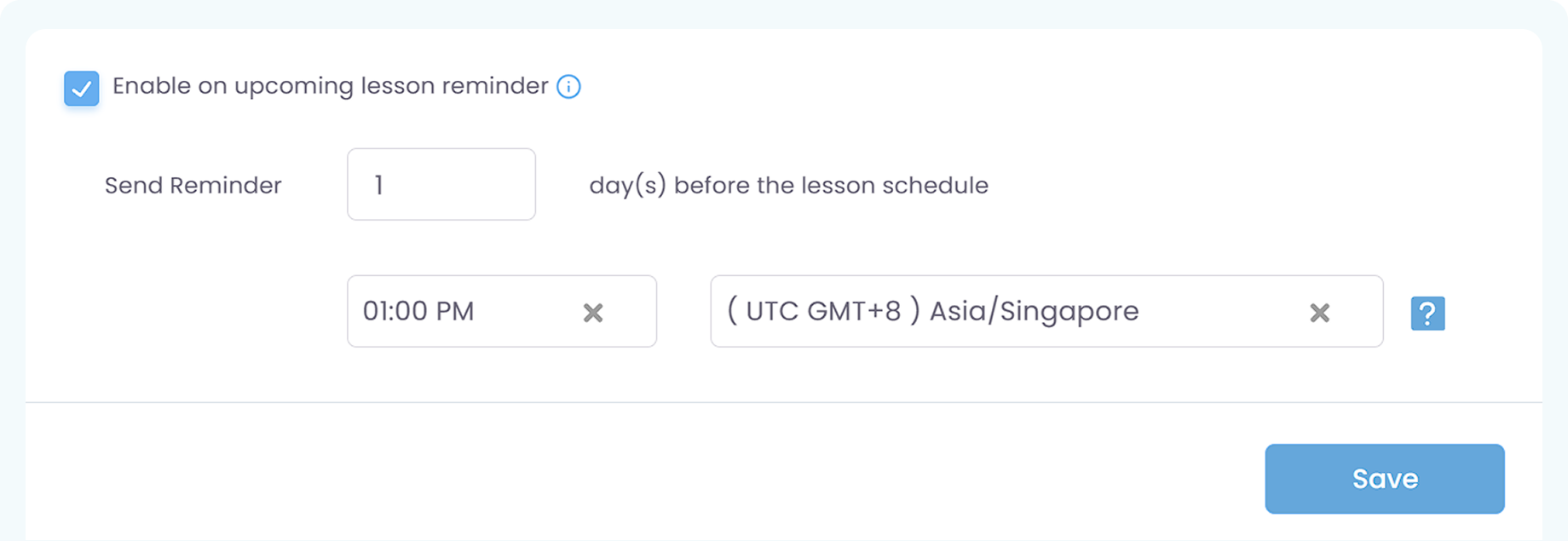
As for the reminder frequency, currently AOne doesn’t support multiple upcoming class reminders to avoid abuse of reminders and spam to parents.
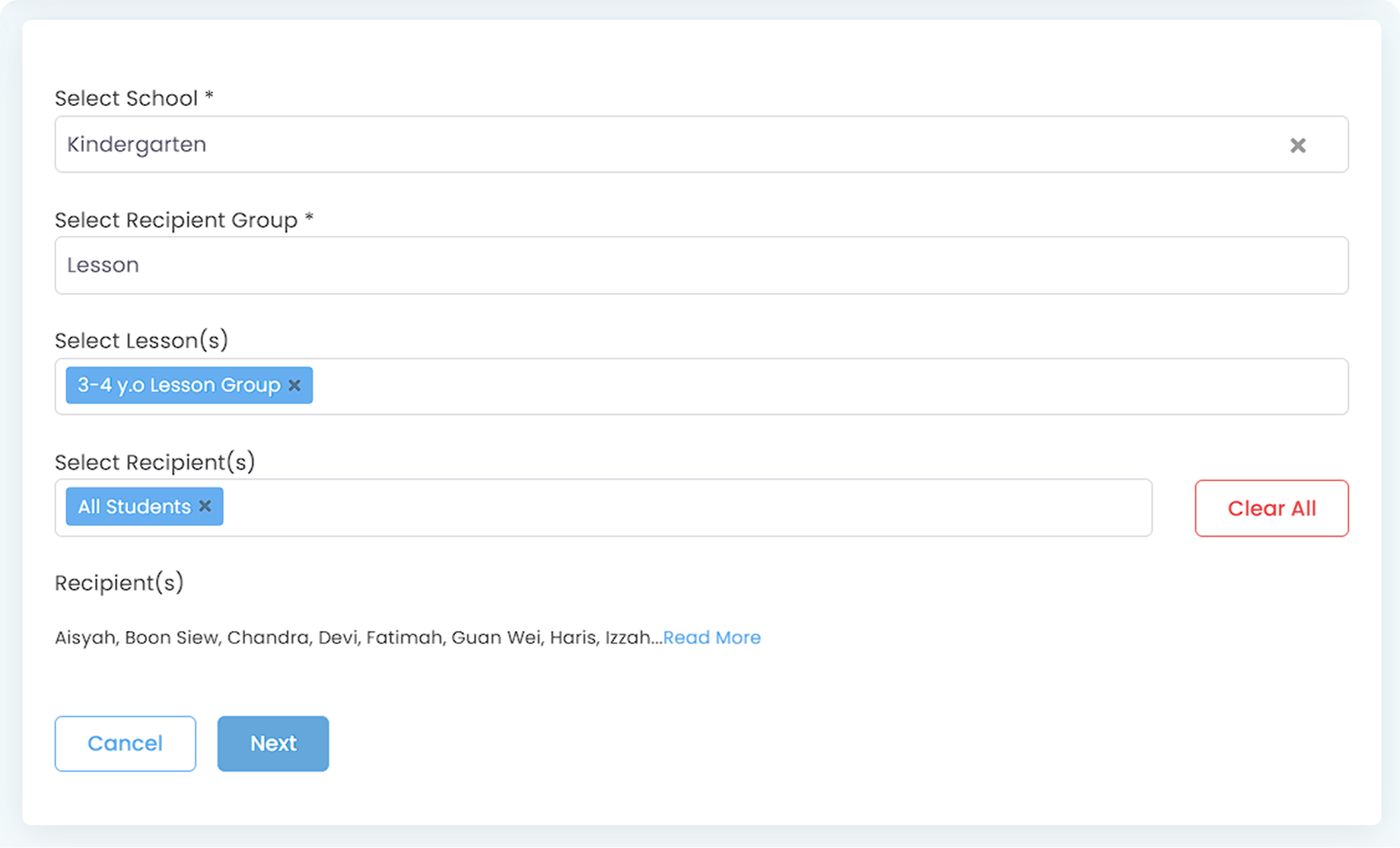
Since the upcoming class reminder’s content is system-generated, you cannot directly customize the content of the reminder itself. However, if you need to send a specific reminder for a special occasion, such as reminding students to also bring past assignments and so on, you can send an Announcement to selected “Lesson” as the recipient.
Can I manage free-of-charge "Trial Classes" within the regular timetable?
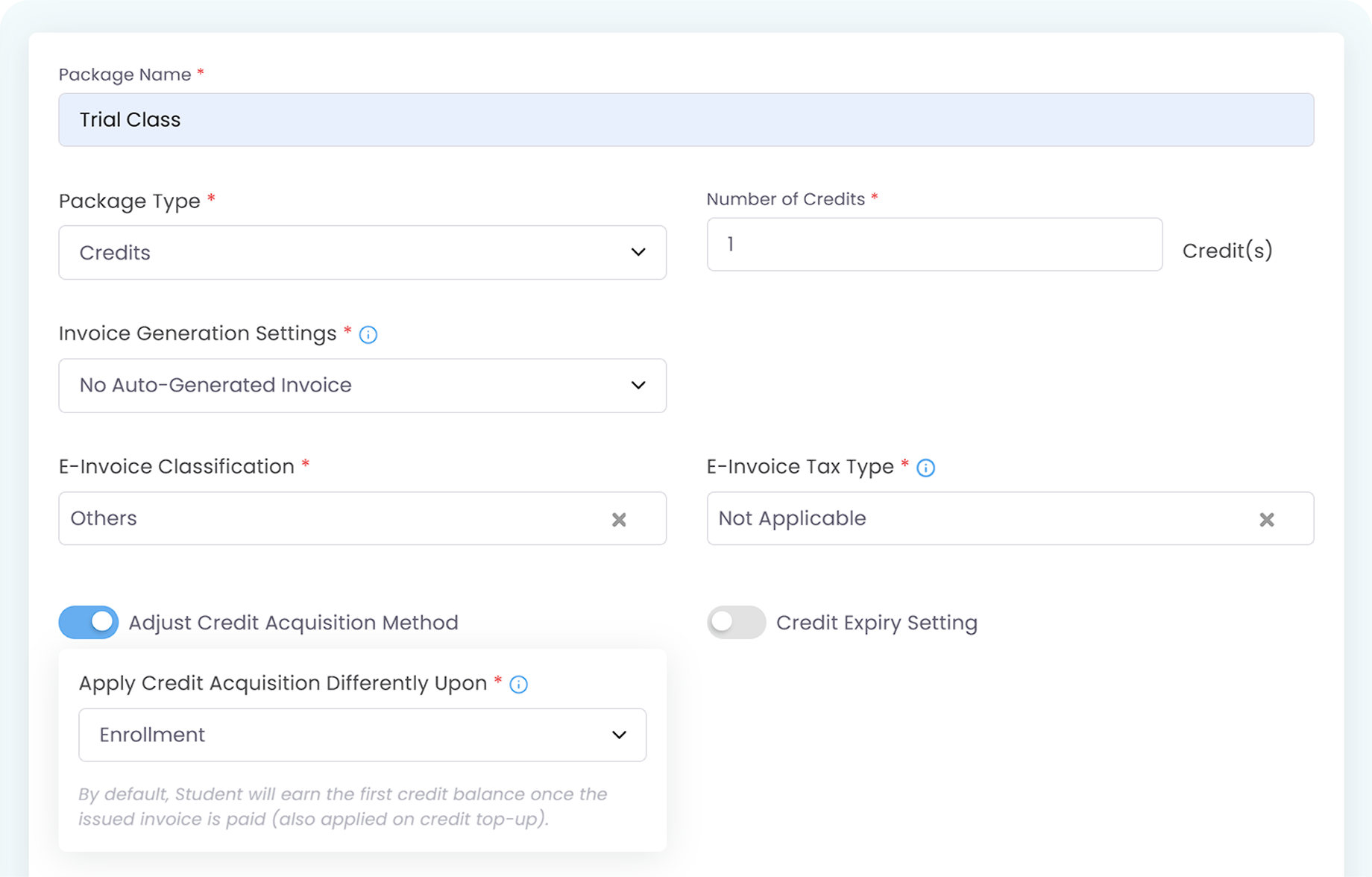
You can create a Lesson named “Trial Class” and color-code it differently to distinguish them from regular sessions. If your trial class is free, you need to create a new Lesson Package while creating your trial class lesson and choose Credits (not Universal Credits) as the package type. It is also important to pick No Auto-Generated Invoice so that parents won’t be charged for your trial class.
When your trial class is ready, you can let parents enroll in your class by filling in the Online Registration Form so that you can directly approve their registration and enroll them in your trial class.
In this scenario, parents can already join your trial class without having to download the AOne app yet, while you have already collected their important data such as Student and Guardian profiles. On top of that, since they have technically been registered to your school, you can send them an Announcement via the module and enable email delivery.
This setup also updates your calendar, and the teacher(s) of your choosing can see that they are assigned to this trial class on their AOne app’s personalized calendar.
After your trial class is over, if:
- parents want to continue enrolling their children in your school, you can easily enroll the students in the desired lessons.
- parents don’t want to continue, you can simply Archive the students’ data so it won’t consume your active students quota. This way, you can also reactivate them anytime if, in the future, they decide to join your school.
Move faster with AOne features
Billing
Invoices, tracking, reminders, and receipts: Automated
Student Management
All student data, organized and manageable in one place
Teacher Management
All teacher data, organized and manageable in one place
Lesson Management
All your lesson data, organized and manageable in one place
Finance Management
Track revenue, payment status, and performance in one place
Replacement
Manage teacher and class replacements effortlessly
Student Registration
Simple, digitized registration flow from form to student profile
Attendance
Real-time attendance with real-time parents notifications

In-app messaging
Chat features for seamless communication with staff and parents